
Client Portal
Introduction
Our client portal enables our clients to create, update, and view their tickets. Additionally, clients may view details on their hardware and service contracts.
A Tour of the Client Portal
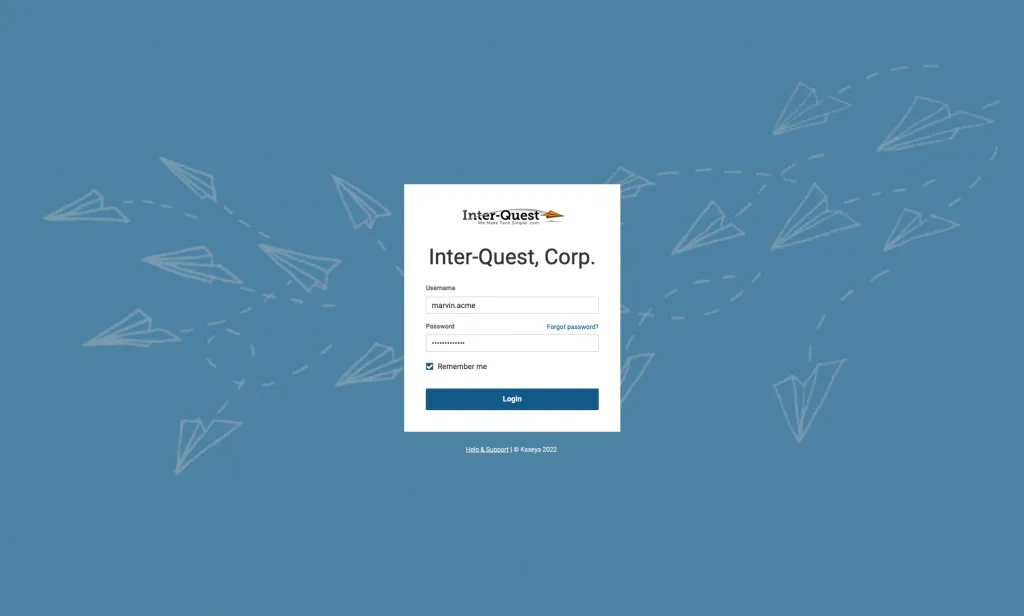
Login
We recommend bookmarking our login page in your web browser for future use.
Need a login? Fill out our form or contact us to request one.
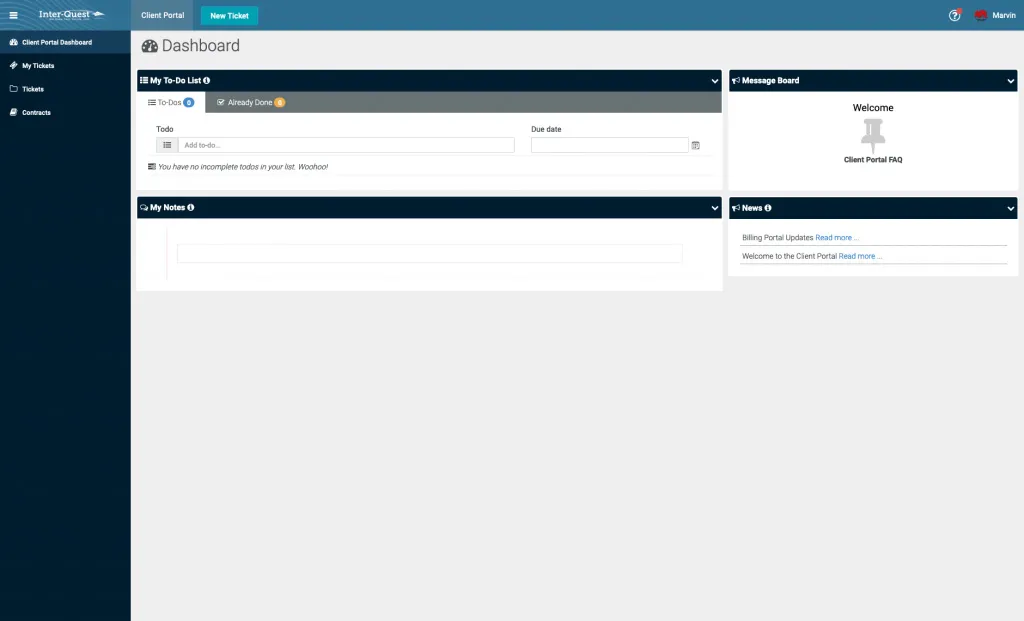
Dashboard
Upon logging in, you’ll be directed to the Dashboard. Here you’ll find relevant news, but more importantly it provides links to your Tickets, Contracts, and a button to create a new ticket.
New Ticket
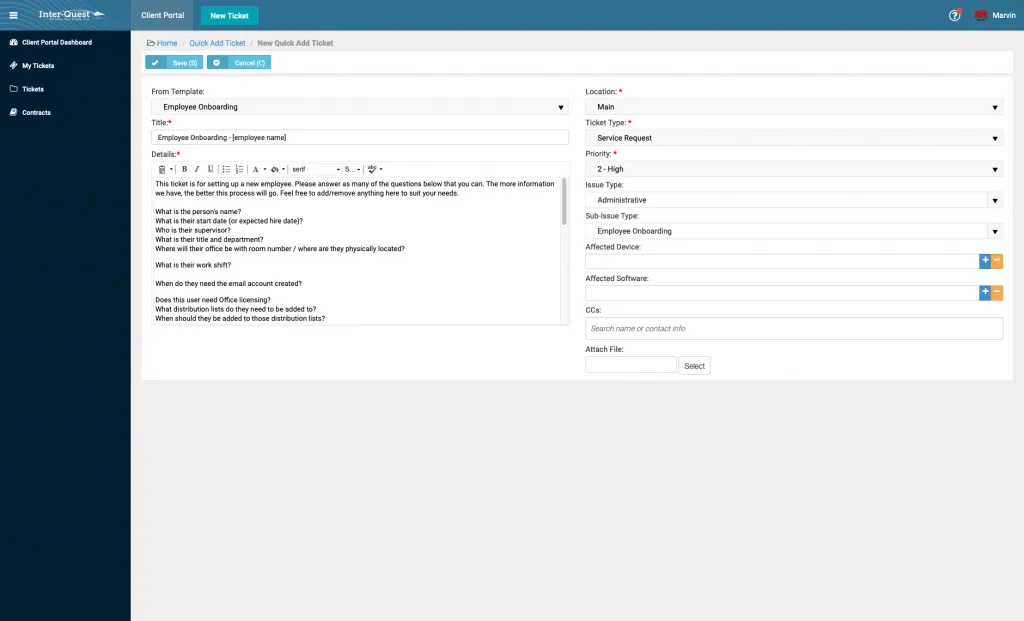
After clicking “New Ticket”, you’ll be directed to the New Ticket page. This page provides a list of fields to fill out in order to create a new service request or to report a new issue.
Within the “From Template” dropdown, you’ll find a handful of helpful pre-defined templates that will make sure we have all of the information we need to help service your request as fast as possible.
If there is no template that applies to your ticket, please provide a concise “Title” and fill in the “Details” of your request.
Ticket
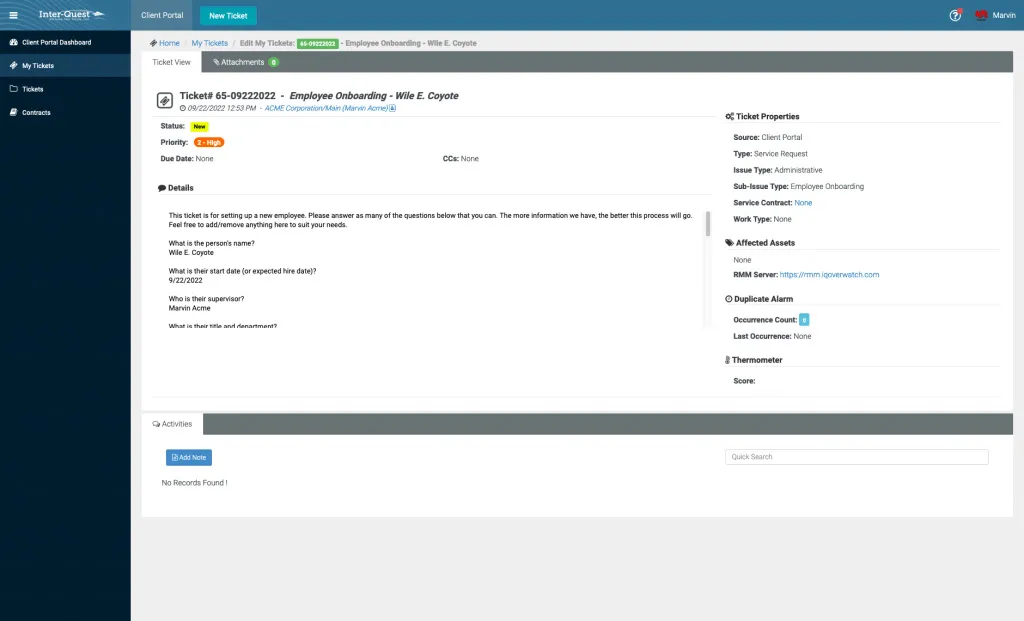
The “Ticket” page displays all information pertaining to a specific ticket. On this page, you’re able to view the most recent notes on your ticket as well as add your own, which will immediately get flagged for us to review.
All Tickets / My Tickets
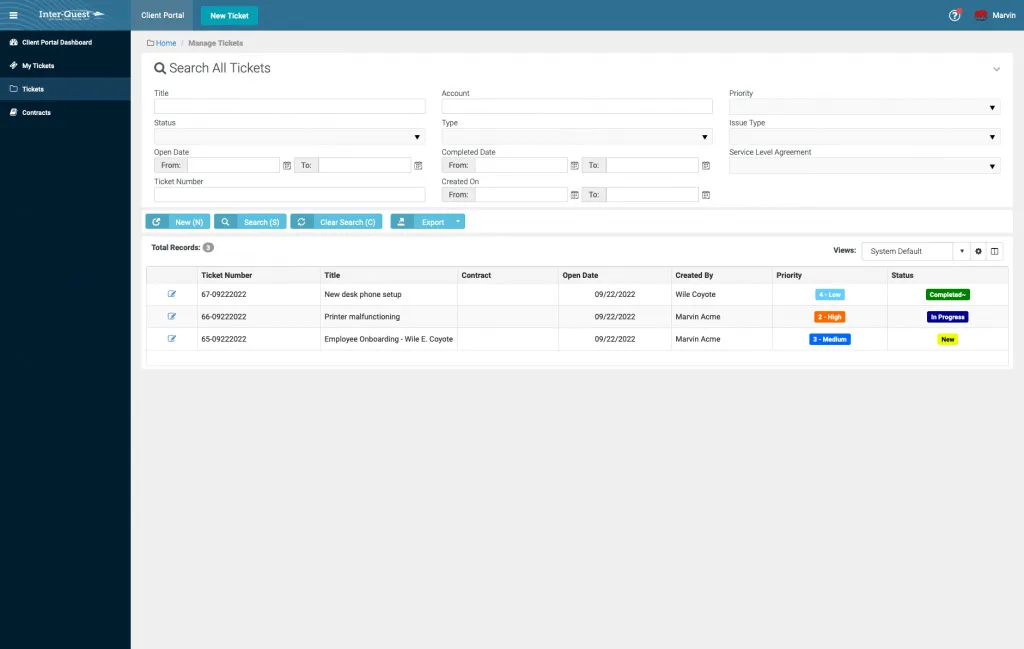
The “All Tickets” and “My Tickets” pages display a list of all tickets that you have access to. On this page you’ll get a birds-eye view of all of your open tickets.
How to Get a Login
To request a login to the client portal, fill out the form below or give us a call.